Uncategorized

November 4th Meeting Recap

Written by Sydney Fischer

The Syracuse Information Security Club held an Alumni speaker event on November 19th, with Ryan French, CISO at Vanguard. Our speaker gave us a background on his experience, his day to day work, as well as helpful advice from a new perspective.

Ryan French received both his bachelor’s and master’s degrees from Syracuse University, and was an active member of the iSchool community during his time here. Ryan was a part of Information Security Club, as well as Kappa Theta Pi. After graduation, Ryan began a position at Vanguard through the Technology Leadership Program, and then began rising through the ranks. He has received many certifications and is now Chief of Staff in the Chief Information Security Office.

While speaking to us, Ryan gave us an understanding of a day in his life, diving into what he does and how he does it, leading to multiple questions from the club. He then moved onto speaking about how we can begin to think and prepare for what we want to be doing, and after a few questions, gave us his ideas on both AI in the Security field and how it can help. Furthermore, Ryan provided thoughtful advice for those considering the consulting or the more technical track, explaining the key differences between the two.

Thank you for speaking with us, Ryan!

Announcements
– CNY Hackathon Signups are now closed, keep an eye out for travel info!
– GBM meeting Tuesday November 11th, see you all then

November 19 Meeting Recap

Written by Jason Riek

The Syracuse Information Security Club held a workshop on November 19, led by Vice President Gianna Voce. The meeting focused on a hands-on cybersecurity challenge called “World of Bills” from the NCAE Cyber Games. Here’s a recap of the key points covered:

Announcements

  • No meeting scheduled for the following week due to Thanksgiving break
  • Brief recap of the CNY Hackathon

Challenge Overview

Objective: Participants were tasked with taking over Bill’s server and fixing various issues. This exercise aimed to develop Linux administration and command-line skills, which are fundamental for more advanced cybersecurity concepts and NCAE preparation.

Challenge Access and Setup

  • Participants accessed the challenge through the NCAE Cyber Games website
  • They were instructed to use the BILL-Client-v2-PRQD virtual machine
  • Login credentials: username “bill” and password “password”

Initial Tasks

  1. Locate the cyberuser#.txt file in the home directory (possibly hidden)
  2. Find the assigned IP address using the “ip a” command
  3. Ping 172.19.0.1 to verify server connectivity
  4. Use curl to access the challenge instructions webpage

Additional Activities

The workshop included multiple activities focusing on:

  • Changing IP addresses in Linux
  • Adding sudo users
  • Working with Linux nologin
  • Potential bash scripting for efficiency

Resources Provided

  • Background video for context
  • Instructions for accessing activity details
  • Subnet Mask Reference Sheet for IP-related tasks

Conclusion

The workshop provided hands-on experience with Linux systems and network configurations, emphasizing the importance of foundational skills in cybersecurity. Participants were encouraged to complete as many tasks as possible during the meeting.

Central New York (CNY) Hackathon 2024 Recap

On Saturday, November 9, InfoSec traveled to Utica, NY to participate in CNY Hackathon. The Central New York Hackathon is a beginner-friendly cybersecurity competition hosted at Mohawk Valley Community College that attracts universities from Central and Upstate New York. The competition is a traditional blue-team red-team competition with Capture the Flag puzzles. InfoSec brought more than 20 members who competed on nearly every team at the competition.
Members thoroughly enjoyed the hackathon through its ups and downs. Notable highlights were a Capture the Flag competition based on deciphering a Rubix cube and success with various infrastructure services. Competitors faced many challenges from the Red Team on the infrastructure side of things, which made those elements interesting and engaging. Overall, the whole competition gave its participants a sense of accomplishment and fostered a friendly learning environment.
CNY Hackathon awards two superlatives per competing team (Most Valuable Player and Most Improved Player). Syracuse University students brought home several of these awards. Team 4 won the competition, which two Syracuse students were a part of (including E-board’s own Townsend!).
Thanks to CNY Hackathon’s organizers, sponsors, and volunteers who made the competition possible!
Image
SU students who won Most Valuable Player and Most Improved Player awards

Reverse Engineering Walkthrough – 10/1 Meeting

ISC_Crackme Walkthrough

By Townsend Southard Pantano

Github

This simple license validator is designed to expose the user to a revere engineering workflow, using Binary Ninja to reverse the license format and validation to bypass the license check and generate a license that the program thinks is valid.

The goal:

Generate your own license that will be accepted by the program. Your license should result in valid values for all the fields under License Details:

successful_demo.pngimg.png

Running the program:

When the program starts, you should see a UI that looks similar to this:

img.png

Pressing “Check License” yields an error message, Invalid number of fields - The license needs more information. While not the most useful, that error message lets us know that the license contains several fields, each with some sort of information.

Loading in Binary Ninja:

Binary Ninja is a reverse engineering platform that allows us to disassemble and analyze the program. We will use it to reverse engineer the license format and validation to generate a valid license. After loading the program into Binja, set the view mode to “Pseudo C” at the top of the disassembly view to make the disassembly easier to read. The function names can be seen in the left top panel, under “Symbols”, and the strings can be found by clicking on the double-quote icon in the column to the right of the disassembly view.

Note: Details in the screenshots will be different on different builds of the program. The view in the screenshots is the Linux build of the program

Strings: The low-hanging fruit

We can search the strings panel for the error message we saw earlier, Invalid number of fields - The license needs more information, to try and find the function that causes it.

There will be one result, and double-clicking on it will take us to the strings table. While not the validation function that we were hoping for, the strings table is just as useful.

img_1.png

The strings table is mostly in order, and the possible error messages are towards the bottom of the screenshot: Here are the error messages:

  • License Successfully Verified!
  • Invalid format
  • Invalid number of fields - The license needs more information
  • Invalid secret number
  • Invalid licensee email address
  • License hasn't begun yet
  • License expired
  • Invalid license dates. Time travel is prohibited
  • Invalid license type
  • Unknown error

The error messages let us know the following about the format of the license:

  • A secret number is required
  • An email address is required
  • The license has a start date
  • The license has an expiration date
  • The license has a type
  • The license is looking for a specific format

Therefore, we can assume that the license has 5 fields:

  1. Secret number
  2. Email address
  3. Start date
  4. Expiration date
  5. License type

Setting types

While in the string table, I will set the format of data_43cdfd to C string. Because the ‘0x2C’ byte is in the string table, it is most likely a C string. 

img_1.png

After the type has been set to a C string, we can see that the string is a comma. img_1.png

Reading Regular Expressions

Also in the string table are 2 regular expressions, 

img_2.png

img_1.png

The first regex will match any string composed of blocks of 4 Alphanumeric characters, terminated by either 2 or 1 = characters. This is the format of a base64 string, so it can be renamed “base64regex” by right-clicking on the data block name and selecting “Rename”.

Note: Base64 encoding is a common method of encoding data as text, using the characters A-Z, a-z, 0-9, and the symbols + and /. The = character is used as padding at the end of the string. It is particularly useful when a programmer needs to encode non-printable data as printable text.

Regex #2 sill match any string consisting of a series of alphanumeric characters, followed by an @ symbol, followed by another series of alphanumeric characters, and ending with a . followed by another series of alphanumeric characters. Therefore, this regex is likely meant to match any email addresses, and can be renamed as such.

At this point, the string table should look like this: img_1.png

Finding the format-checking function

We can search for likely function names that may be called to validate the license. While function names will often be stripped from compiled programs, they are available in this example.

By searching ‘license’ in the Symbols panel, we will have a list of matching functions: img.png

We can look at the function License::checkFormat(std::string) by double-clicking the function name in the symbols list.

Near the top of the function, we can see that it calls License::b64Check(std::string), then xors the result with 1. Therefore, if the base64 check succeeds, then the variable will be set to 0. I will rename this variable to b64CheckResult for clarity. Also, arg2 should be renamed to ‘inputString’.

The License::checkFormat(std::string) function should look like this now: img.png

Base64 Check

We can look at License::b64Check(std::string) by double-clicking the function name in the symbols list.

img.png

While there is some logic in the function, near the bottom we can see that it is checking if a string matches a regular expression. We can select the regular expression, "^([A-Za-z0-9+/]{4})*([A-Za-z0-9+… and look at the Cross References (xrefs) pane in the bottom left to see where it is defined. Looking at the xrefs panel, we can see that the regex is the string we renamed to base64regex earlier. Now we know for a fact that this function is checking if a string is a base64 string.

Back to License::checkFormat(std::string)

Returning to License::checkFormat(std::string), we can see that the function enters an if statement if (b64CheckResult == 0), which we know means that the base64 check succeeded.

The first code executed inside the if statement is:

0040ab27          void var_c8;
0040ab27          b64_decode(&var_c8, inputString);
This snippet base64 decodes inputString and stores the result in var_c8, which will be renamed to decodedString.

Note: the structure of assigning a variable of void type and immediately calling a function with that as the argument is a common way of passing a reference to a variable. The called function will then set its result to that variable passed in.

Scrolling down towards the bottom of the function to find the next usage of decodedString, we can see that it is passed to a function splitString img.png

We can see that splitString is called with decodedString, a new variable, and 0x2C as arguments. We can make this clearer by renaming the first argument, in my case var_108, to splitString, and by setting the display mode of the 0x2c to be a character constant, as is shown below:

img.png

After changing the display mode, we can see that the function is calling splitString with the decoded string and a comma as arguments.

We can now see that the split output is used right underneath the call to splitString by checking to see if number of strings in the output is not 5. img.png In the screenshot, the variable rax_8 will be 1 if the length of the list splitStringOutput is not 5, and 0 if the length is 5.

Therefore, we can be sure that there are 5 fields in our valid license

If the length check succeeds (if rax_8 is 0), the function will execute a regular expression check on the first element of the split string:

if (rax_8 == 0)
{
    void var_128;
    std::basic_regex<char, std::regex_traits<char> >::basic_regex(&var_128, "^[a-zA-Z0-9._%+-]+@[a-zA-Z0-9.-]…", 0x10);
    
    if (std::regex_match<std::ch...har>, char, std::regex_traits<char> >(std::vector<std::string>::operator[](&splitStringOutput, 0), &var_128, 0) == 1)
        rbx_1 = 0;
    else
        rbx_1 = 4;
    
    std::basic_regex<char, std::regex_traits<char> >::~basic_regex(&var_128);
}

While it looks complex, it can be simplified relatively easily. Lines 0040ac60 are creating a regex object that checks if a string has an @ symbol, then saves that to var_128 Lines 0040ac98 are checking if the first element of the split string matches the regex

Note: std::vector<std::string>::operator[](&splitStringOutput, 0) is the same as calling splitStringOutput[0] – both are accessing the first element of the output of splitString

If the regex check succeeds, the variable rbx_1 will be set to 0, and if it fails, it will be set to 4.

At the bottom of the function, we can see that the function returns rbx_1. Throughout the function, we can see that rbx_1 is set to different values if either the base64 check or the email check fail, but set to 0 if the checks succeed. Therefore, we can assume that 0 is returned if checkFormat succeeds.

What we have learned so far:

There are 5 elements in the license: Email, Start Date, Expiration Date, Secret Number, and License Type.
  • The License is base64 encoded
  • The fields are separated by a comma
  • Email is the first field of the license

Finding the rest of the fields

Currently we know that the first field is an email address, but we don’t know the rest of the structure of the license. We can look for other uses of splitString to try and identify other fields in the license. By searching “splitString” in symbols, then selecting the function, we can see the xrefs below the symbols field:

img.png

While 2 of the usages are License::checkFormat, the other usage is License::importLicense. We can select that entry in the Cross References pane to jump to that usage of splitString

img.png

The function License::importLicense is very dense, but we can start to understand it by renaming variables. We see that b64_decode is called almost immediately and has its output set to var_38, so it can be renamed to decoded_string As with License::checkFormat, we can see that splitString is again called with decoded_string and a comma as arguments (although as before, the comma is viewable as its hex equivalent 0x2c).

It becomes clear that the rest of the function is going through the elements of the split license index by index, and saving them to indices within arg1

Note: Since License is an object, arg1 (as decompiled from the Linux binary) is the License object passed to all member functions of the class. Therefore, indexing into arg1 would be setting fields of a License object.

Using the rest of the function, we can start to build a picture of the data in each field of the license.

std::string::operator=(((char*)arg1 + 0x80), std::vector<std::string>::operator[](&split_string_output, 0));: We know that the first field of the license is at the first index, split_string_output[0], and is the email address.

std::string::operator=(&arg1[0x14], std::vector<std::string>::operator[](&split_string_output, 1));: The second field of the license is a string

arg1[0x1c] = std::stol(std::vector<std::string>::operator[](&split_string_output, 2), nullptr, 0xa);
arg1[0x1d] = std::stol(std::vector<std::string>::operator[](&split_string_output, 3), nullptr, 0xa);

std::stol is a function that converts a string to a long integer. Therefore, the third and fourth fields of the license are interpreted as numbers

std::string::operator=(&arg1[0x18], std::vector<std::string>::operator[](&split_string_output, 4));: The fifth and last field of the license is a string

What we have learned so far:
  • The license is base64 encoded
  • The fields are separated by a comma

  • The format of the license is as follows:

    1. Email
    2. String
    3. Number
    4. Number
    5. String
  • the five required fields are:

    1. Email
    2. Start Date
    3. Expiration Date
    4. Secret Number
    5. License Type

It would be unreasonable to assume that the start and end date were different data types (e.g. one being a string and the other being a number), so we can assume that the start and end date are both numbers or both strings.

All that remains to figure out is:

  • Whether the dates are stored as numbers or strings
  • How the license type is stored
  • How the secret number is stored

Diversion: Looking at the error codes:

When reversing the License::checkFormat function, we saw that the function would return 0 if it succeeded, and 4 if the email check failed.

It may be useful to find other error codes to try and figure out the missing fields of the license. By returning to the string search for one of the error messages, clicking on one of the strings, for example, “Invalid secret number”, we can view the cross-references to that string.

img.png

By double-clicking on either of the cross-references that reference that error message, we are taken to License::License() The function has a list of setting ints to different values, 1-9, then setting a std::pair<int32, char const[some length]>

After renaming the variables, here is the function: img.png

This can also be interpreted as a table of error codes and their corresponding error messages:

Error Code Error Message
0 License Successfully Verified!
1 Invalid format
2 Invalid number of fields – The license needs more information
3 Invalid secret number
4 Invalid licensee email address
5 License hasn’t begun yet
6 License expired
7 Invalid license dates. Time travel is prohibited
8 Invalid license type
9 Unknown error


By using the values from the table, we can begin to figure out the remaining fields of the license.

Figuring out the date format

We will start by searching the symbols for License:: and looking for likely functions that could tell us more about the format of the date

The list of functions returned by the search includes License::timeCheck(), so we’ll go there by clicking the function name: img.png

The first thing that the function does is get the current time using the system function, which returns a unix timestamp. For clarity, we will rename the variable to current_time.

Note: A Unix timestamp is the number of seconds that have passed since January 1, 1970. It is a common way to store time in programming.

The other two variables referenced in this function are arg1 + 0xe0 and arg1 + 0xe8. These are likely the start and end dates of the license, but we can’t be sure which is which yet.

We can see that there are 4 possible return values from this function: 7, 5, 0, and 6. Assuming that the return values are error codes, we can refer back to the table of error codes we made earlier.

Error Code Error Message
0 License Successfully Verified!
5 License hasn’t begun yet
6 License expired
7 Invalid license dates. Time travel is prohibited

Using those error codes, we can can infer that the function is checking if the current time is between the start and end dates of the license. If the current time is before the start date, it will return 5, if it is after the end date, it will return 6, and if the current time is between the start and end dates, it will return 0. If the start date is after the end date, it will return 7.

Because of the data types used, we know that the dates are saved as unix timestamps in the license, and that the start date is the first number, and the end date is the second number.

What we have learned so far:

The license is base64 encoded, with the 5 fields separated by commas.

The dates are unix timestamps

The discovered fields are as follows:

  1. Email
  2. Unknown string
  3. Start Date
  4. Expiration Date
  5. Unknown String

All that is left is to figure out the secret number and the license type

Constructing a partial valid license

Now that we know the format of the license, and the majority of the license fields, we can begin to construct a partial license, and see what the program returns.

To construct the license, I will use 2 websites to generate the unix timestamps and base64 encode the license, although anything that gets the job done is fine:

Note: CyberChef is an incredibly powerful tool. The link to cyberchef pre-fills the recipe for base64 encoding, but you can construct your own recipes by dragging and dropping the operations you want to perform.

Start by generating the timestamps for the start and end date of the license using the epoch converter, selecting any date in the future and any date in the past.

In the “Input” field of CyberChef, enter the license fields separated by commas according to what we know so far:

email,unknown_string,start_date,expiration_date,unknown_string

For example: test@test.test,qwertyuiop,1694245945,1883634745,qwertyuiop

img.png

After encoding the license, paste it into the license field of the program and press “Check License” to see what the program says:

img.png

Congratulations! The email, format, and date checks have been passed, now the secretNumber check needs to be passed:

Secret Number check:

Back to Binary Ninja, we can search for the function that checks the secret number. By searching for License::isValidSecretNumber in the symbols, we can find the function that checks the secret number. 

img.png

The function is very complex. While it would be possible to reverse engineer the function, we can see that it is only ever called in a single location, by looking at the Cross References pane. By clicking on the cross-reference, we jump to that function, License::checkNumber, which we see has many more references.

img.png

There are only 2 possible return values from this function: 3 and 0. Looking back to the table of error codes:

Error Code Error Message
0 License Successfully Verified!
3 Invalid secret number

This function is likely actually in charge of checking the secret number, and is much simpler than the License::isValidSecretNumber function

Still, the function calls License::isValidSecretNumber with the secret number as an argument, so that function is still needed.

However, we can patch the function to not check the output of isValidSecretNumber and always return 0. To do this, we will select the entire function but the return statement, right-click, and select “Patch Function”, then “Convert to NOP”

NOP stands for No Operation, and is an assembly instruction that does nothing. By converting the function to NOP, we are effectively disabling the function, ensuring that it will always return 0.

img.png

To actually apply the changes to the binary, we will save as, then select “Save file contents only”, and save the file.

Now we can run the modified program and enter the same license as before, and see how the behavior changes:

img.pngimg.png

Now that the secret number is patched, the program congratulates you on patching the number check (assuming the number check is patched successfully). However, the license type is still missing, and the “Invalid license type” error still appears.

License Type:

We could start by assuming that the license type is a string, and return to the string table section in Binary Ninja by searching again for any of the error messages in the strings menu.

Returning to the strings table beneath the error messages, we see strings such as, “Professional”, “Standard”, and ” Trial”. These are likely the possible license types. Using the same strategy as was used to construct the error code table, we can also construct a table of license codes and types by selecting a license, then using the Cross References to see where it is referenced.

img.png

img.png

Back in License::License(), we can see all of the license types and their corresponding codes, allowing the construction of a table of the License types:

License Code License Type
LIC_UNLIC Trialv
LIC_STD Standard
LIC_PRO Professional
LIC_PROPLUS Professional Plus
LIC_APPLE Professional Plus Max Pro Ultra
LIC_ENTR Enterprise


Now that we have the license types, we can construct a license with the license type included, and see if the program accepts the license:

Valid License Construction:

We still don’t know where the license type and the secret number are in the license but we can simply construct 2 licenses, one with the license type in the first unknown spot, and one with the license type in the second unknown spot.

Known Fields: email,unknown_string,start_date,expiration_date,unknown_string

Attempts: email,license_type,start_date,expiration_date,secret_number and email,secret_number,start_date,expiration_date,license_type

Examples: test@test.test,LIC_UNLIC,1694245945,1883634745,qwertyuiop, and test@test.test,qwertyuiop,1694245945,1883634745,LIC_UNLIC

Using CyberChef to base64 encode each of the licenses, we can try each of them in the program to see if they are accepted as valid licenses

img.png

Note: I used the fork operator, which will cause the To Base64 operation to be performed on each of the input lines

By trial and error, we can see that the license with the license type in the first unknown spot is accepted as a valid license, and the license with the license type in the second unknown spot is not accepted.

Therefore, the correct License format is: email,license_type,start_date,expiration_date,secret_number

Congratulations! At this point, you should be able to make your own license.

img.png However, you may notice that the status text box at the top says “CRACKED”, not “LICENSED”, like my example at the beginning showed.

Throughout the program, I have placed checks that make check whether the program has been patched. Note that even if you provide a valid number secret number and the secret number check is patched, the program will still display “CRACKED” instead of “LICENSED”. There are several approaches you may take to getting it to display “LICENSED” (And bypassing the popup congratulating you on patching the number check):

  • Finding and patching all the checks for the patched functions
  • Reverse engineering the secret number check and generating a valid secret number
  • Reimplementing the secret number check in another language and brute-force checking for valid serial numbers
  • Patching out the checks that determine whether to display the “CRACKED” message or the “Congratulations on patching message”
  • Figuring out what algorithm I used to determine whether a secret number is valid or not (I didn’t create my own algorithm)

Linux as a Personal Workstation, not as a Server

Recently, Information Security Club members have been practicing their networking skills on Raspberry Pis, and were successfully able to give their Raspberry Pi a static IP address during the previous club meeting. This allowed club members to experience first-hand how to configure a Linux server. During this meeting, I overheard a couple of club members say that they wished they had learned Linux before. This got me thinking about what the best way to force yourself to learn Linux is. Ultimately, it’s by having a stake in the matter. What I mean by that is you’ll never want or need to learn Linux unless you have to, and the way you ensure you have to is by using Linux every day, not as a server, but as your personal workstation.

While that may sound daunting to some newcomers to the Linux space, I can attest to how fun it is to use Linux as a workstation; I have exclusively done so on all of my laptops for over six years. It only took a month from the first time I used Linux to decide to completely remove Windows from my laptop now and forever. I won’t lie and say that it’s been all roses and sunshine. I was constantly messing things up and breaking them, but without Windows as a crutch to fall back on, I had to learn to fix the things I messed up. And the more you learn, the less you’ll break things and the less you’ll want to break things.

Thankfully, the Linux desktop space has drastically improved in the technical and user-friendliness space over the last four years, and now you are able to use it comfortably for most activities, including gaming, without needing to worry about everything breaking. In fact, the new Steam Deck runs on Linux. If Valve is confident enough to use Linux for a device meant for the average consumer, you should be confident enough as well!

Choosing a Distribution (or “distro”)
The Linux space is, for the most part, broken into three families of distributions, colloquially knows as “distros”: Red Hat Enterprise Linux (RHEL)-based distros, Debian-based distros, and Arch-based distros. Each has its owns little quirks and communities, but in the end they all provide one thing in common: packages and tools on top of the Linux kernel which let you more easily use Linux for your own purpose, whether that be as a server or a workstation.

For this write-up, I will focus on using Fedora Linux as a workstation for the following reasons:

  1. Fedora has an easy-to-use USB installation creator.
  2. Fedora has a relatively quick release cycle (every 6 months).
  3. It’s built on top of an enterprise distro (RHEL), so it should theoretically not break often.
  4. Fedora makes it easy to not care about details 2 and 3, because let’s face it, what average person cares about those things? We just want to use our computer and not have to think too hard about it unless we choose to!

While I will be focusing on Fedora, there are an overwhelming myriad of other choices of Linux distros, and ultimately the choice is yours for what to use. I will give shout outs to distros that have personally served me well in the past as I learned to use Linux:

Before we start the installation, please make sure all of your personal files are backed up somewhere because they will get deleted when Linux gets installed onto your drive. It’s possible to install Windows and Linux side-by-side on the same laptop and choose which to use when you turn your laptop on, but even that risks losing all of your files, so back them up. This guide will assume that you’re completely removing Windows. If you’d like to have both, research “how to dual boot Fedora and Windows”. That is beyond the scope of this guide.

Installation Preparation

Now, unless you specifically order a laptop with Linux pre-installed, you’ll need to manually install Linux onto your device of choice. You’ll want to check some things before you start:

  • Device manufacturer (Dell vs Lenovo vs HP)
  • CPU (Intel vs AMD)
  • GPU (Intel iGPU, AMD, Nvidia)

Linux nowadays works pretty well on most laptops using Intel and AMD, but if you’re running Nvidia you may experience difficulty. Macs are a whole different story, and they’re best avoided unless you really want to put Linux onto one. It’s best that you do research to see how well your laptop supports Linux.

For this write-up, I’ll be using a Dell Latitude E7470, a standard laptop you’ll see in business and school settings.

As I stated before, Fedora provides a tool that makes it easy to create a USB installer. Grab a spare USB drive that’s 2GB or more, and download Fedora Media Writer for your Windows or Mac machine. Install it and make sure your USB device is plugged in before you open it.

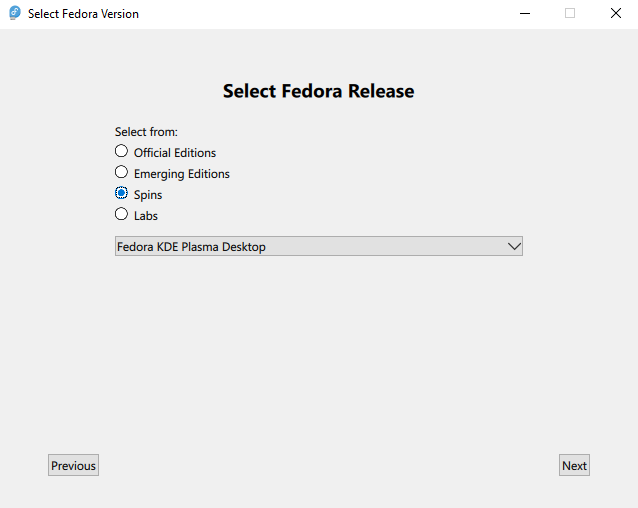
Upon opening Fedora Media Writer, you’ll want to choose “Download automatically” and hit “Next”. You’ll be greeted with this page:

Screenshot of Fedora Media Writer

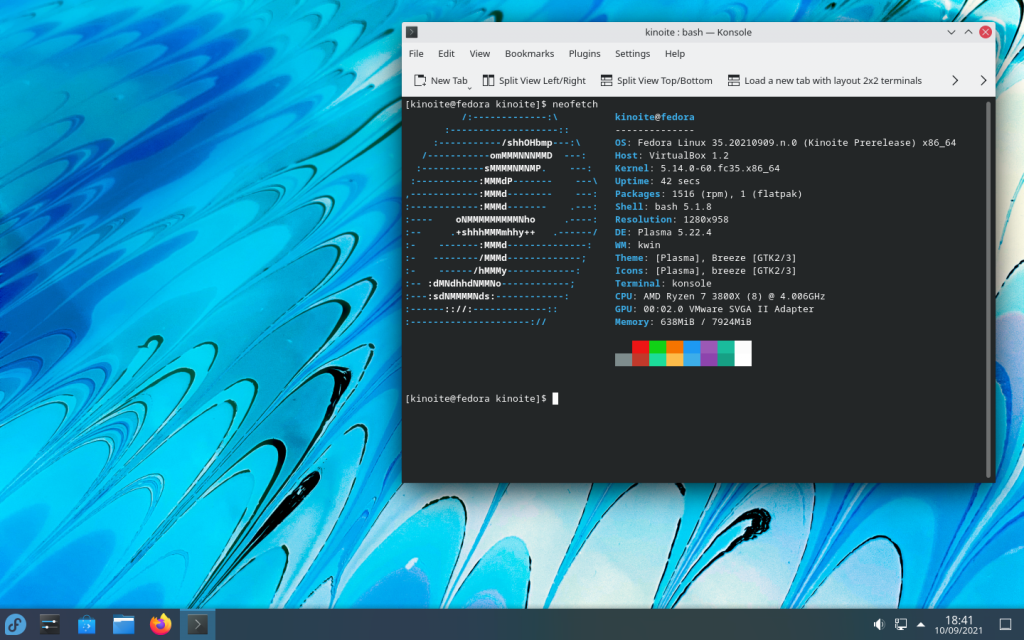
Fedora has many different options for installation, but for this purpose, I’ll be choosing Fedora KDE Plasma Desktop, which is basically just Fedora that will look similar to this when we’re done:

Fedora with Plasma Desktop

You can hit “Next”, select the USB drive this will be installed onto, and hit “Download & Write”. Once that’s the done, the USB will be ready to use to install Fedora onto our laptop of choice.

Installation

Turn your laptop off, plug the USB into it and boot your laptop into the boot menu. For Dell laptops, this involves pressing F12 as your laptop boots. This may vary between brands, so please research how to do so on whatever machine you have. You should see a list of options, including the USB drive you have plugged in. Navigate to it and hit “Enter” (Note: If you don’t see an entry for your USB in the boot menu or if you click it and nothing happens, you’ll need to investigate how to turn off Secure Boot on your laptop).

You’ll now boot into the USB and be able to test out Fedora before installing it. What you see now is essentially how things will look when you’re finished installing it, so feel free to get a feel for things. You’ll likely want to connect to a WiFi network at the bottom right corner.

Once you’re ready to install, click the “Install to Hard Drive” icon on your desktop.

Set your keyboard layout and time zone in the installer. The “Installation Destination” step is important! This is where you will tell Fedora to install itself onto your computer’s hard drive, deleting anything else you had on there. Select your hard drive, click “Done”, and if prompted, choose “Reclaim Space”, “Delete All”, and “Reclaim Space”. Fedora will now know to install itself onto your drive.

Skip “Root Account” as that is disabled nowadays, and go to “User Creation”. Set your username and passwords, hit “Done”, and you should be ready to “Begin Installation”. This may take a while, just sit tight until it’s done. Eventually you’ll be prompted to remove the USB and reboot. Upon reboot, you’ll be greeted with the login page to your new Fedora workstation!

Acquiring Software

Great, you’ve logged in to your new operating system! Luckily, it hasn’t left you to fend for yourself. You’ll find that Fedora comes with plenty of software that you’d need on a day-to-day basis, including but not limited to:

  • Discover – a software center or “app store”
  • Elisa – a music player
  • Firefox – a web browser
  • KCalc – a scientific calculator
  • KDE Connect – an app to see your phone notifications with your phone, share clipboards, etc.
  • KMahjongg – a Mahjongg game
  • Konsole – a terminal
  • Libreoffice – a suite of software similar to Microsoft Office
  • Okular – a PDF viewer

Great, that’s enough software to let me browse the web and do some homework, but what if I’d like to get more software? Well, this is where things get a little iffy and will require a bit of history and the introduction of some new developments in the Linux desktop space.

Linux Package Management

Many of you may be familiar with the string of commands sudo apt install <software> which installs <software> onto a machine. In this case, apt is what we call a package manager, specifically the package manager used on Debian-based distros. Keep in mind that Fedora’s package manager is dnf, so the equivalent would be sudo dnf install <software>.

Essentially, there are volunteers who find a bunch of the software people tend to use on Linux, and then “package” it. They put software into a file that has information about how the software should be installed, what other programs it needs to function correctly, etc. This file is then put into a repository, which you can think of as a sort of “app store”. When you run sudo apt install <software>, apt searches the repository that your computer is configured to use, finds the software you want, and downloads it along with anything else the software needs to run. While this sounds complicated, all it really means is that running sudo apt install firefox in a terminal will install Firefox onto your computer! Pretty simple. In fact, you don’t even need to open a terminal to install anything. You can use Discover, the built-in software center, to search for Firefox and install it through there.

Historically, this is how people installed packages on Linux, but there are some problems with this model:

  • Release cycles
    • Most distros go through a release cycle, so outside of security updates, they only update the packages in a repository every so often.
    • For Fedora, it’s every 6 months. For other distros, it could be anywhere from 1 to 2 years.
    • This means that if software gets updated, it may be months before you get to see that update.
  • Dependency hell
    • Let’s say you want software A and software B. Software A depends on version 1.5 of software C, but software C depends on version 1.6 of software C.
    • You can’t have both versions of software C installed! What now?
    • People who manage repositories do their best to alleviate these kinds of issues, but sometimes it just doesn’t work out and you get a mess of downloads.
  • A dirty system
    • Let’s say you’ve been using your machine for years. You’ve downloaded lots of packages over the years, uninstalled just as many, and forgotten that you’ve installed even more on top of that!
    • Sometimes, packages leave a bunch of files all over the place, and you’ve no idea where exactly.
    • Suddenly, you have a bunch of random packages and files that have made God knows what changes to your system. If something messes up, where do you even start to try to troubleshoot?

Of course, for its many faults, this system has worked for decades and is admittedly quite elegant for things like managing important system packages, but other solutions, particularly ones geared for easy use of desktop applications, have appeared since the introduction of package managers.

AppImages

AppImages are one of the methods that attempt to simplify the use and distribution of desktop software in Linux. They work similar to a .App in MacOS or a .exe in Windows. All you need to do is download an AppImage, click on it, and now the application opens and runs! A good example of this is LMMS, a music production application, which distributes its application on Linux using AppImages. AppImages make downloading software on Linux similar to Windows, but come with the same problems: how do I discover software, and where should I put my .AppImage files? There have been attempts to mitigate these issues, such as through the AppImageHub, a repository of AppImages, and through AppImageLauncher, which will automatically organize your AppImages into the Applications folder, similar to how it’s done on MacOS with .App programs.

AppImages are rather convenient in the fact that deleting the .AppImage file means you’ve deleted the program! Pretty great! There may be some files left over in your user’s directory, but theoretically your system files should be clean.

Flatpaks

Flatpaks have been making strides in the Linux desktop space for the past couple of years. Flatpaks make it possible to do the following:

  • Package applications once and ensure they run on any Linux distro that supports Flatpak.
  • Package apps in a container with their dependencies, to avoid dependency hell when installing multiple applications.
  • Sandbox apps, similar to on Android and iOS, so that apps that don’t need access to the network or to your files won’t have that access.
  • Update apps when the developer of the app decides instead of the release schedule of your distro.
  • Delete applications knowing that they don’t leave unwanted files in your system directories.
  • Having the necessary media codecs needed to play common music and video files.

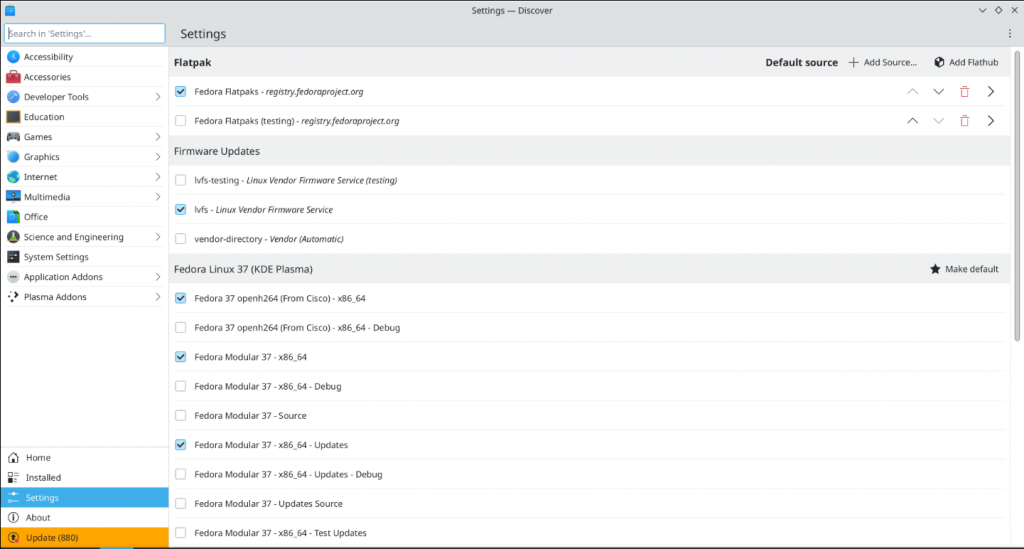
Flatpak is even pre-installed on Fedora and integrates with Discover so that you don’t need to download anything new to use it. Out of the gate, Flatpak on Fedora points to Fedora’s Registry, but due to legal and philosophical issues, is limited in what software it offers. You’ll likely want to use the Flathub repository, instead, which comes with many popular pieces of software, such as Steam, Discord, and Spotify (feel free to browse their website and see all of the software they offer for free!). Luckily, Fedora makes it easy to configure Discover to use the Flathub repository instead of its own registry. If you open Discover’s settings, you’ll see a button called “Add Flathub” at the top right. Press it to add the Flathub repository to Discover.

Screenshot of Discover's settings page

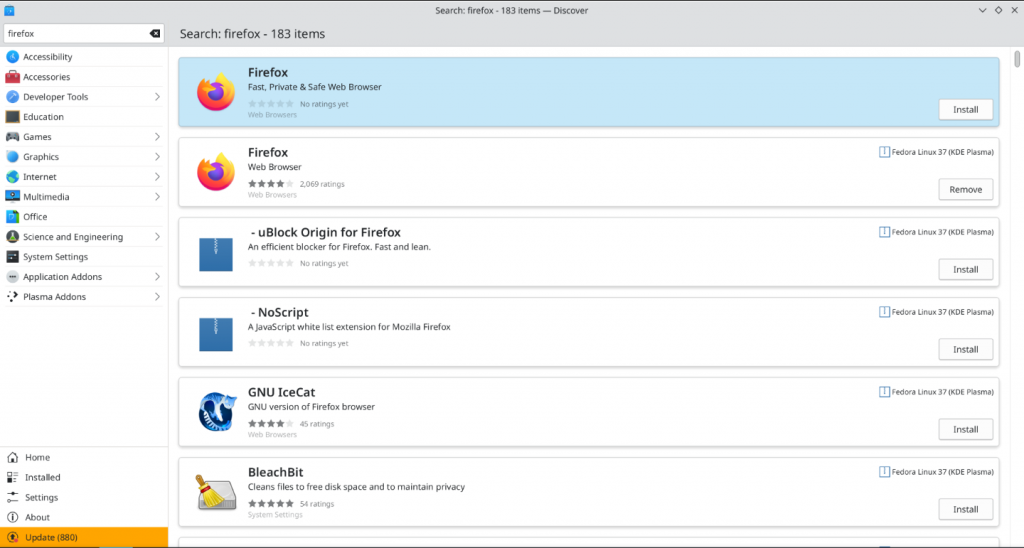
Personally, I would raise the priority of Flathub to the top, disable the “Fedora Flatpaks” repository, and set Flatpak as my default source, but the choice is yours. With that setup done, if you go to “Home” in Discover and search for software, you’ll get a list of software with Flathub software at the top and software that’s from your system’s package repository marked with “Fedora Linux 37 (KDE Plasma)” under it. Take this screenshot as an example:

Screenshot of searching for Firefox in Discover

The first Firefox option is the one from Flathub, the second is the one we’ve already got installed on our system. This is a little confusing, but admittedly it’s a poor example since Firefox happened to be installed already.You won’t see this problem for other software.

Note: I’d recommend removing the system Firefox and using the one from Flathub. Fedora only provides open source media codecs through its system package manager for legal and philosophical reasons. As far as I’m aware, the Flathub Firefox includes media codecs that makes hardware acceleration for videos possible.

With this setup complete, now you can install software straight from Discover and enjoy the benefits of Flatpaks. No need to touch your terminal (unless you want to, of course!) or scour the internet for .exe files like on Windows.

Now, for all their pros, Flatpaks are still relatively new technology that have some pain points. For one, Flatpak can sandbox applications, which can be good for security but also make some things inconvenient. For example, by default the Discord Flatpak only has access to your Downloads folder, nowhere else. This can be incredibly confusing to people who downloaded Discord and didn’t know about this restraint. There are two solutions to such a problem:

  • On the developer side, portals. Essentially, the idea is that users should trust the operating system over applications. So an application should request permission from the user when needed. This is what portals allows applications to do. A developer can take advantage of portals so that when a user needs a file, the application will call a portal, and the portal will open the file manager so that the user can choose the file, which the portal will then pass to the application. The application only sees the file that the portal gives it, which is the file you gave it permission to use. Safe and convenient. However, developers need to take advantage of portals, and sometimes they either refuse to or don’t have the time or funds to change their application to do so.
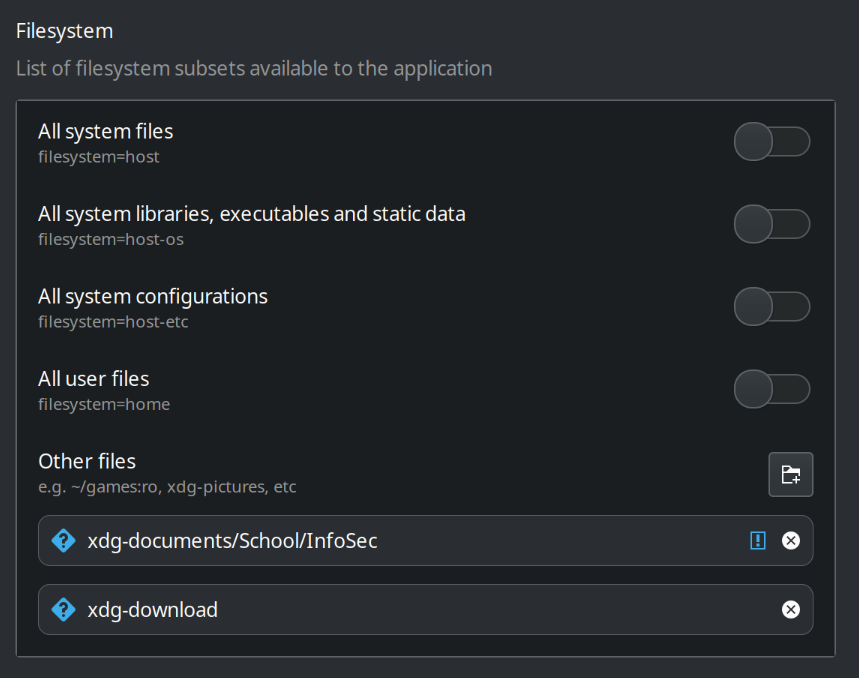
  • On the user side, giving applications broader permissions. If an app doesn’t implement portals and you want it to always see a particular folder you can give it permission to do so. The easiest way of doing this is by downloading Flatseal, which you can get from Flathub. After downloading it and navigating to the Flatpak app you wish to change permissions for, you’ll see something like this:

Flatseal permissions

I’ve given this particular application access to my downloads folder and my Documents/School/InfoSec folder. Great! Now the application has more permissions and I can use it without hassle. You can do the reverse, too, where you take away access from the app so that it doesn’t have access to parts of your filesystem or so that it can’t use Bluetooth or network.

Note: Flatseal’s capabilities are now built into KDE Plasma Desktop. If you run updates on Discover after booting into your desktop for the first time and then restart, you should be able to search for “flatpak” and see this settings page:

Because of this, Flatseal is now superfluous. However, I’ve personally run into errors when using this Settings page since it is a new addition, so using Flatseal in the meantime until bugs are ironed out will not hurt.

Things should get better on this front as more applications take advantage of things like portals. The Linux desktop, while better than ever, is also in the middle of an awkward transition from an insecure model of trusting everything to a more secure permissions-based model.

Windows Applications on Linux

That’s all great, but what if there’s a Windows application I can’t find an alternative to that I really need? Personally, I’ve only had this problem with games, which is easily solved if your games are on Steam by activating Steam Proton. You should be able to search on the internet how to do that. Just make sure to search ProtonDB to see what games work best.

In case you have this problem with non-game software, your best bet is to use Bottles, a program available on Flathub that uses WINE to run Windows software. WINE translates Windows system calls that programs use into Linux system calls so that the programs run straight on Linux. Bottles makes it easy to use WINE, just make sure you check WINE’s application database to see how well your program runs on WINE.

I recommend avoiding this if you can and to find alternatives to the software you’re attempting to use. Linux is not Windows, so trying to use it like you use Windows is only setting yourself up for frustration.

Great! Now you have two ways of installing software on your new desktop: Flatpaks for desktop applications and the system package manager for system updates and terminal based programs, and you can download and update both straight from Discover!

X11 and Wayland

I mentioned already that Linux is in an awkward transition phase, and part of that involves the transition from X11 to Wayland.

X11 is a windowing system protocol that essential describes how to draw things on the screen, giving us things like GUIs and windows. X11 is network-transparent, meaning that it can be run as a server, and a remote terminal could connect to it, sort of like using a remote desktop. Also, all windows could “see” one another and “hear” the user’s keypresses. This made it easy for apps on Linux to implement screen sharing and recording, and global hotkeys.

However, besides that model being insecure, X11 is also old technology, so developers starting writing a new protocol that takes into account modern uses of machines, mainly as personal workstations, like a laptop or mobile phone. This effort became the Wayland protocol, a new way of implementing a display server that also introduced secure ways of sharing and recording your screen and implementing global hotkeys. Nowadays, Wayland is the default display server for many Linux distributions, including Fedora.

However, not every app has transitioned to Wayland, so many still need X11 to run. Wayland solves this by implementing XWayland, basically running an X server in tandem with itself, so that you can run any app without much trouble. A major downside, though, is that things like Zoom, Discord, and Teams run through XWayland, so you lose the ability to share your screen on those apps unless you log out and switch to X11 in the login screen.

Thankfully, as of just a couple days ago, a developer hired by Valve has introduced a program to work around this issue. Now, with this program running in the background, if you’re on Wayland and an XWayland app requests permission to share your screen, the program, XwaylandVideoBridge, will catch this and share your screen with the app. Hopefully, this will be added by default to Linux distros that use Wayland by default and users can use their desktop like normal.

Eventually, as all apps transition to Wayland, this tool and XWayland may not even be necessary. Personally, I wouldn’t bet on that. Linux users are an opinionated bunch and love sticking with what they know.

Exploration and the Wider Community

You’ve installed Linux and are using it as a normal workstation. This is pretty conducive to learning by experience, but one doesn’t learn alone! No, you learn by seeing what others do, reading documentation, and discussing cool new software with others which in turn motivates you to experiment yourself.

Therefore, I think that a discussion about the Linux community and the best way to navigate it is in order.

Just like most communities, you’ll find Linux communities on Discord, Reddit, etc. However, the Linux community has a strong inclination toward Free and Open Source / Libre Software (FLOSS) and the philosophies that come with that. Because of this, you’ll find many members of the community coalescing around social networks built on top of open standards and protocols. For example, some communities hang on mailing lists. Others hang on Internet Relay Chat (IRC), Extensible Messaging and Presence Protocol (XMPP), and Matrix chat servers. Still others hang on social media networks built on top of the ActivityPub (AP) standard.

What exactly these all mean is not what’s important, rather the important thing to understand is that the Linux community’s adherence to the FLOSS philosophy and the wider philosophy of hacking culture is a big part of their own culture. Understanding this philosophy and taking it on yourself if desired will help muster the excitement one needs to want to learn more about Linux in general, which will ultimately help to learn about Linux for server and enterprise usage.

One final note to dear readers: search the internet for any questions you may have, join community spaces and ask questions to learn, and never give up!

InfoSec Club CyberSEED Team Comes in Sixth ?

?This past weekend, the Information Security Club participated in CyberSEED 2023. After a long couple of weeks of preparing for the competition, they were able to come in 6th place among all 192 participating teams, earning the team a total of $500! This is an incredible achievement and marks a steady climb up the leader board compared to last year when the Information Security Club ranked 12th place among 119 participating teams. Year by year we see improvements thanks to the dedication of all the team members. Make sure to give congratulations to the members of this year’s CyberSEED team:?

  • ?Ellison Chiang?
  • ?Sophia Luo?
  • ?Anthony Mazzacane?
  • ?Sean Shin?

Recap for 2/7

Hello, fellow information security enthusiasts!

Yesterday we reminded everyone of the upcoming competitions, namely CyberSeed on March 4th, National Cyber League the weekends of March 31st and April 14th, the NCAE CyberGames on either Feb 18th or March 11th, and the graduate student exclusive CPTC for next semester. Please, if you are interested in forming a team, let us know on Discord so we can plan accordingly, especially for CPTC as it involves writing a business proposal as part of the application.

We are also planning on showcasing a tool-of-the-week every week! This week’s tool is Lynis, a security auditing and compliance scanner for Linux, MacOS, and other Unix-like operating systems. If you have a Mac or Linux machine of your own or if you have a VM spun up, feel free to download and try this tool. You may find out some unsavory things in your machine’s configuration!

We are also planning to do a weekly challenge that members can complete outside of the club to earn badges. This week, we will be doing a steganography challenge. We will be announcing the challenge on the #weekly-challenge-chat channel in Discord, and you’ll be able to post the solution you found on the #weekly-challenge-submission channel. Spoiler tags are required for anything sent in the latter channel, so do not forget! We will be announcing the challenge sometime this week so keep an eye out. If you need help, this page is an incredible resource for steganography.

As for what went down in the club, we showcased two exploits: one which takes advantage of Chrome’s autofill passwords feature to steal someone’s password, and the other is a simple SQL injection attack on http://demo.testfire.net.

The first one involves these steps:

  • Open Chrome/Firefox and go to a website that you’ve saved a password to and has auto-fill setup in your browser.
  • Right click the password box and choose “Inspect Element”
  • Change the type=”password” field to type=”text”
  • You should be able to see your password in cleartext

As for the second one, we asked members to research on their own how to perform a simple SQL Injection Attack. They were able to successfully do so on http://demo.testfire.net, a site which is purposely vulnerable. If you find out how to do so on your own and show us proof on Discord, we’ll happily give you a badge for completing the task.

That was it for this week. Make sure to check out the Community page to see how fellow club members are doing!

Recap for 11/15

This week’s meeting was chill as everyone winds down for the upcoming break, but important bureaucratic discussions were had! First things first, for those who want to give a hand in the lab, please fill out this When2Meet so we can know and figure out the best time for everyone to meet. Also, make sure to go to the roles channel in Discord and grab yourself the “Lab” role!

Second things second, we are currently looking for anyone interested in holding an E-Board position in the club! If you are interested, please express that interest in the Discord. We are looking to do a shadowing program with the current E-Board so that the next generation of E-Board can settle in quickly and do their best to keep the club going for another 10 years! ?

Besides that, make sure to keep up on CyberStart! The break is on its way, so for those heading out, stay safe! And for those staying in Syracuse, also stay safe! Enjoy!

Recap for 10/25

Lots of thanks to Fenya and Juriasi of the e-board, who conducted today’s meeting! We started off by forming teams for the upcoming NCL Team Game, so if you are participating and have not chosen a team or have been put into a team, contact us on Discord so that we can discuss that. Also, CNY Hackathon registration is still open until Friday October 28th, so if you want to go then make sure to sign up at the CNY Hackathon Registration page and fill out the transportation form. Spots are first-come first-served, so be sure to register as soon as possible if you want to go.

During the meeting, we learned about the Simple Shell Server (SSH) tool, which lets us connect to the terminal of a remote computer, most commonly through port 22. If you need SSH access to your server, make sure that your firewall is not  blindly blocking access to port 22! After the lecture, we had a chance to test out using SSH by playing the Over The Wire Bandit game, which has us progress through levels by finding the passwords to different users on a server. You do not need an account to play, just a terminal with SSH installed (it’s installed automatically on Mac Terminal and Windows PowerShell). Definitely try it out if you didn’t get a chance! Here’s a helpful tip: save the passwords in a text file on your computer once you find them so you don’t lose progress.

Today’s photos:

[su_image_carousel source=”media: 1018,1020,1021,1022,1023″ captions=”yes”]

Announcement for 2/22

Hello everyone!

Join us tonight for a few fun plans. We will be doing a Bandit-Over the Wire team game to explore different things we can do at the command line. If you’re competitive, try to see the farthest level you can reach!

We will also be providing more information for the this weekend’s NCAE competition (National Centers of Academic Excellence in Cybersecurity). Come to find out more!

As always, Hinds Hall 011 at 8PM.